YW4 Recomp · fan PC port

The launcher

A Windows app for the PC version of Yo-kai Watch 4++. Point it at your own game files: it checks them, builds YW4Recomp on your PC once and starts it, with mods, DLC, saves and screenshots all in one place.

5 stepsgame files, check, options, build, play
10–15 minto build the game, once, on your PC
11 themessynced with the in-game overlay
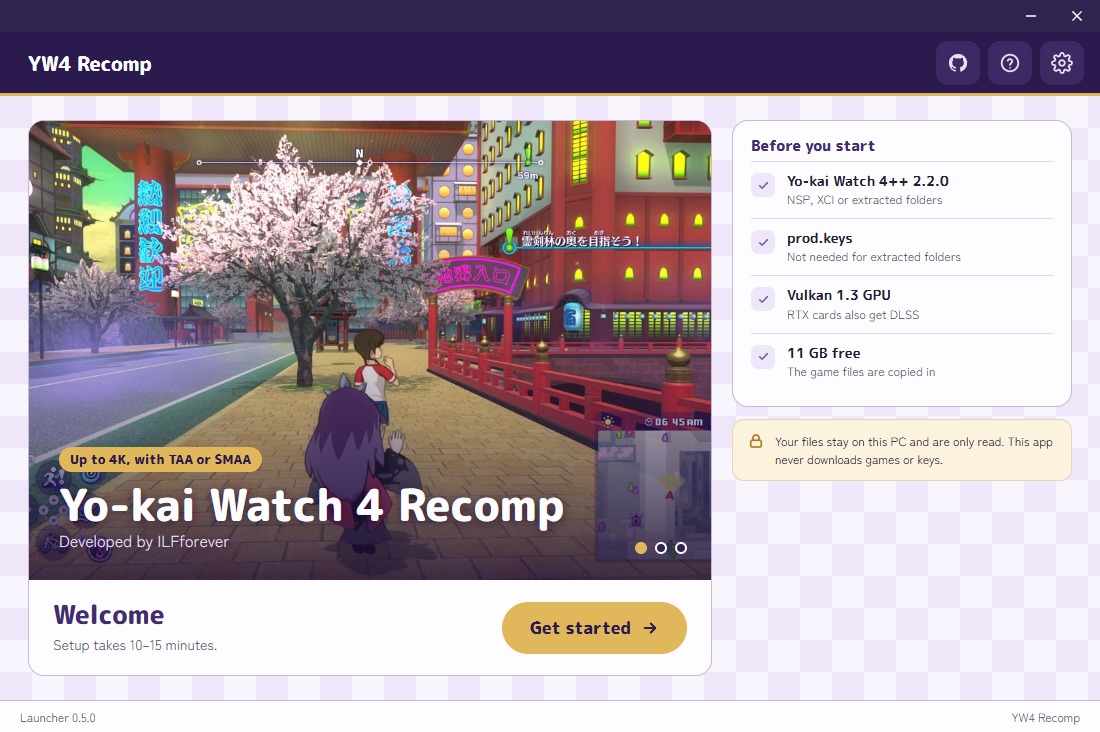
The launcher's Home screen: the slideshow, a Welcome card with Get started, and what you need before you start
Home: the first screen when you open the launcher
!

First start

Setup

Follow the steps below to build your own copy of YW4Recomp:

  1. Point it at your game files. NSP, XCI or extracted folders of version 2.2.0.
  2. It checks, extracts and builds the game. locally, once: about 10 to 15 minutes.
  3. Play. From the launcher, or from a shortcut.

What you need before you start: the game and its 2.2.0 update, the keys for NSP and XCI files, a graphics card with Vulkan 1.3, and the free disk space. The launcher checks your files before beginning the build process.

Needs
Windows, x86-64
Graphics
Vulkan 1.3; NVIDIA RTX cards also get DLSS
Your game
Yo-kai Watch 4++ with the 2.2.0 update
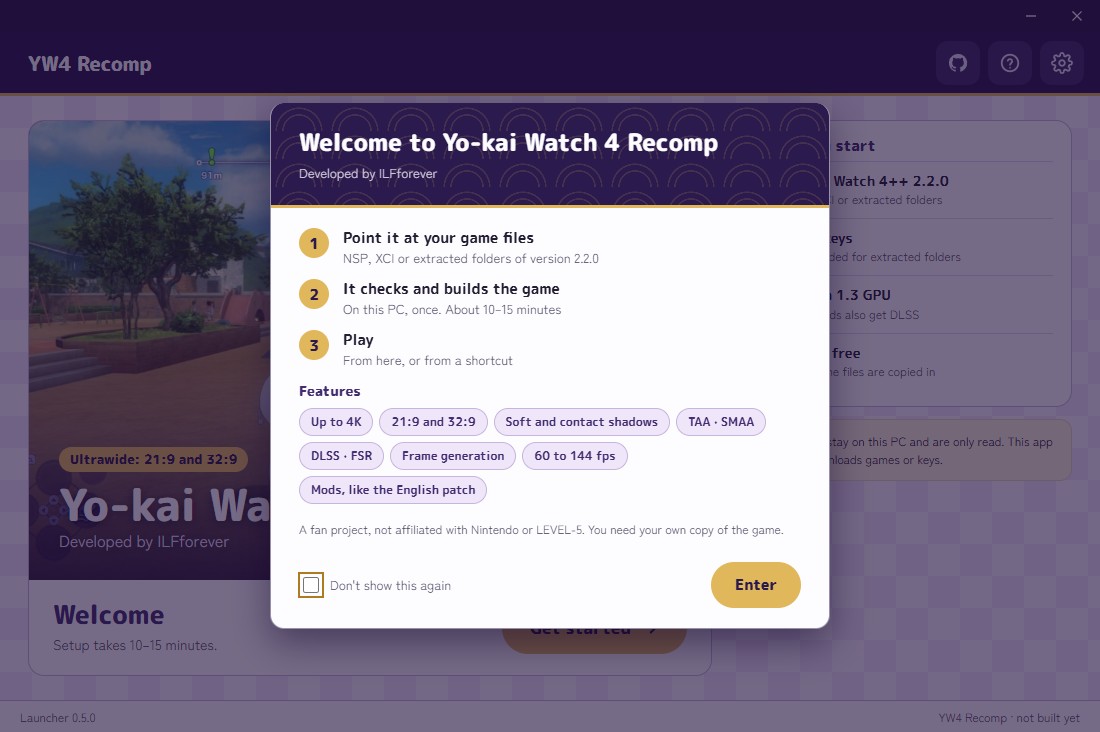
The launcher's first start: the welcome popup with three steps, the features and a 'don't show this again' box
The welcome popup, over the home screen
!

Your game files

Setup

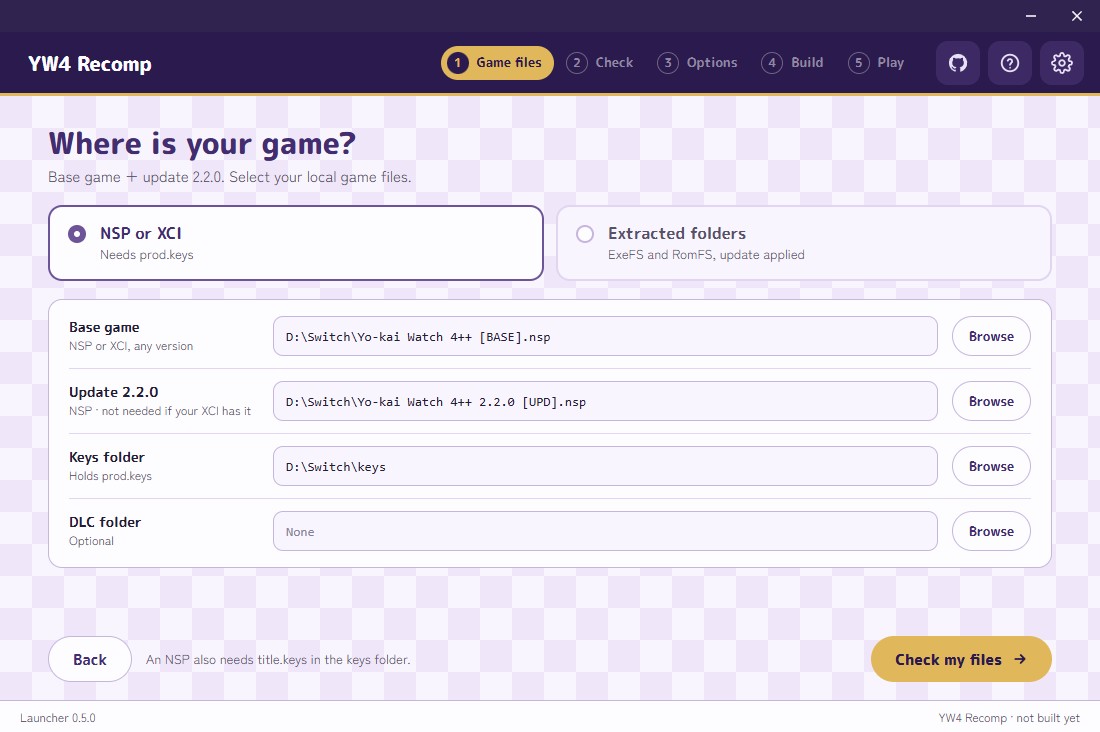
Choose how your copy is stored: NSP or XCI files, or extracted folders (ExeFS and RomFS, the update applied). Then point it at the base game, the 2.2.0 update, the keys folder and, if you have them, the DLC.

Nothing from the game comes with the launcher. The YKW4 Recomp launcher does not ship with any game files nor assets and we do not condone piracy or unauthorized distribution of copyrighted materials.

Formats
NSP, XCI, or extracted folders
Version
2.2.0 (Final version)
Keys
prod.keys for NSP and XCI; an NSP also needs title.keys
DLC
Optional (can be added later)
Where is your game?: NSP or XCI chosen, fields for the base game, the 2.2.0 update, the keys folder and the DLC folder
Step 1 of 5: where your game is (example paths)
!

Check, options, build

Setup
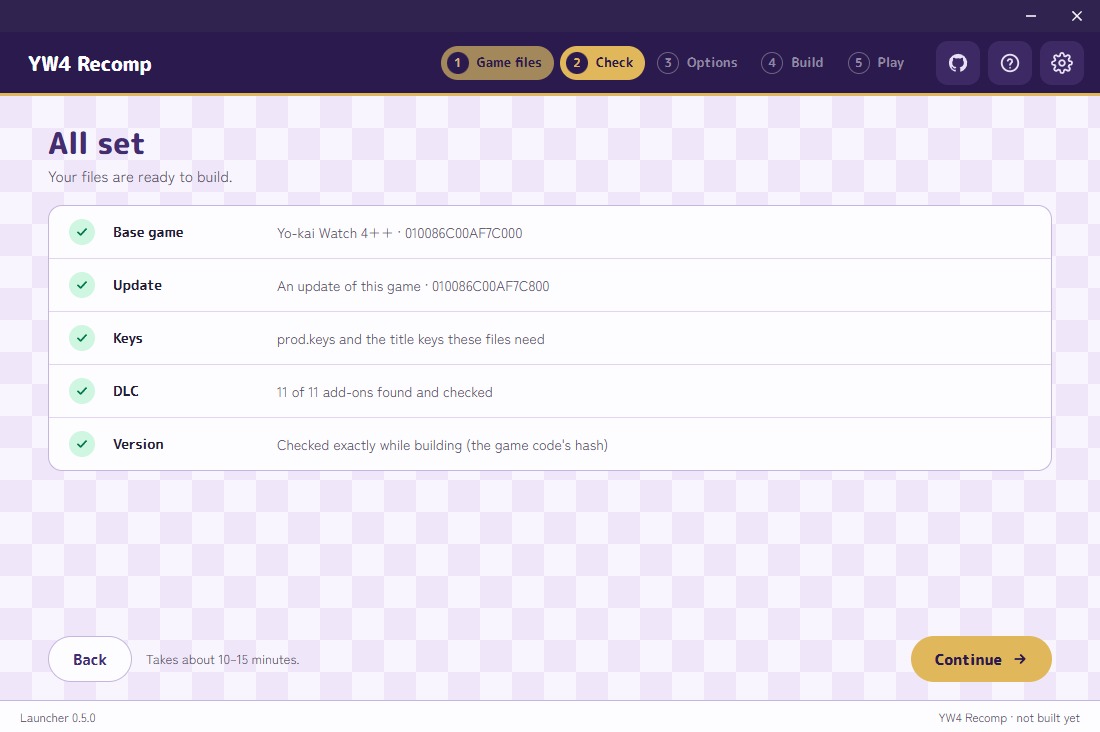
  • Check launcher checks if the files are the right game and the right version, and the keys open them.
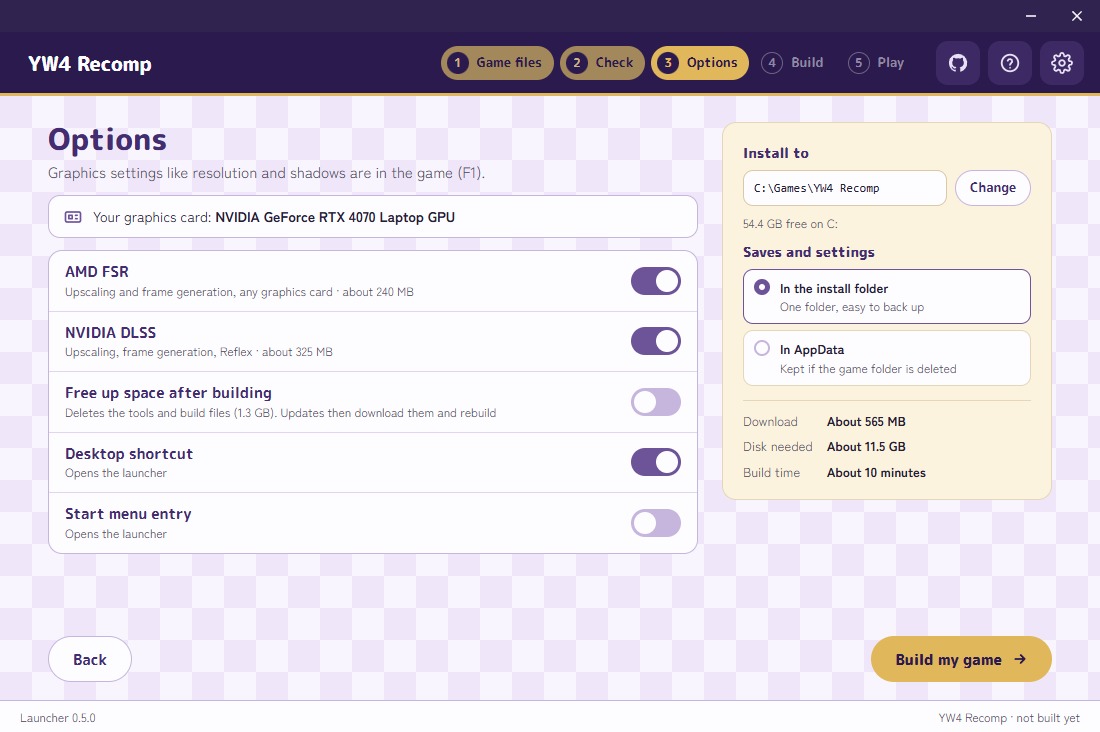
  • Options: where the build goes, whether saves and settings stay in the game's folder or in AppData, shortcuts, and your option to download AMD FSR or NVIDIA DLSS. It names your graphics card; DLSS is greyed out without an NVIDIA RTX card. The graphics settings themselves (resolution, shadows...) are in the game.
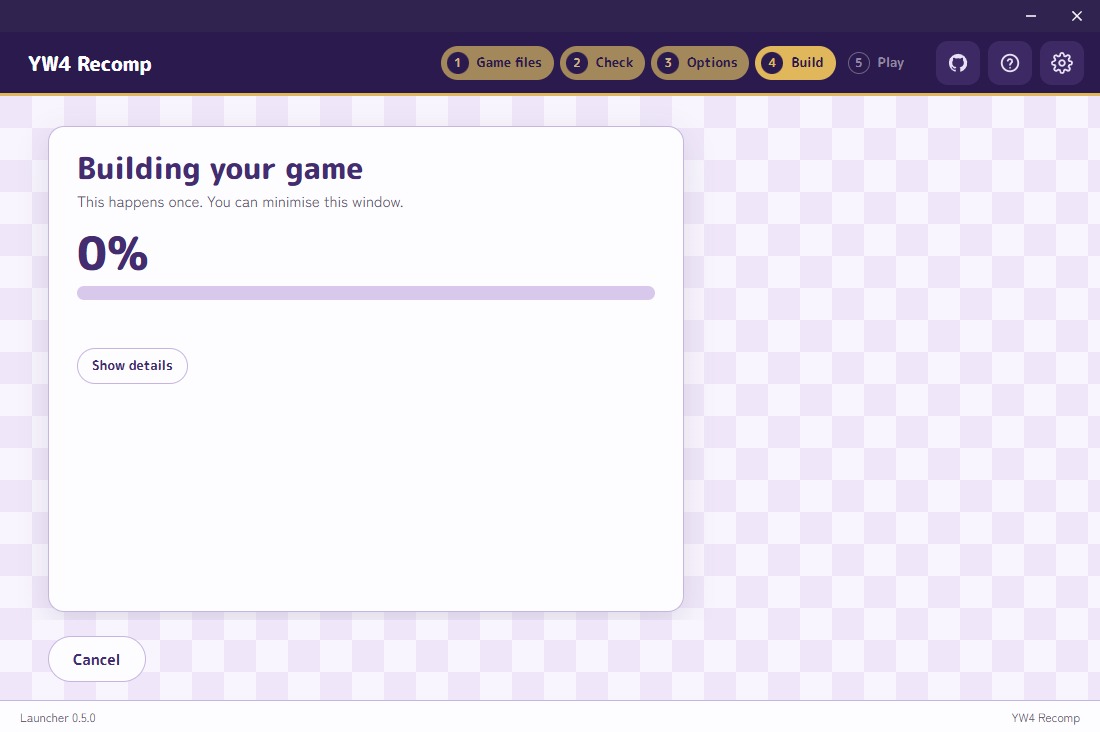
  • Build: the game's code is being translated and compiled into a Windows program on your PC, about 10 to 15 minutes, once. You can follow along using the progress bar on screen.
Build time
About 10 to 15 minutes
Saves
In the game folder or in AppData
Downloads
AMD FSR, NVIDIA DLSS (optional)
Record
decision 0050
The Check screen, all set: base game, update, keys, DLC and version each with a green tick, and Continue
Check: all set, with the files found
The Options screen: your graphics card named, the install folder, saves in the game folder or AppData, AMD FSR, NVIDIA DLSS, free up space after building, shortcuts, and the download and disk size
Options: where the game goes, and what to download
The Build screen: Building your game, 0% with a progress bar, Show details and Cancel
Build: the progress bar, initial build, about 10 to 15 minutes
!

Play

Every day

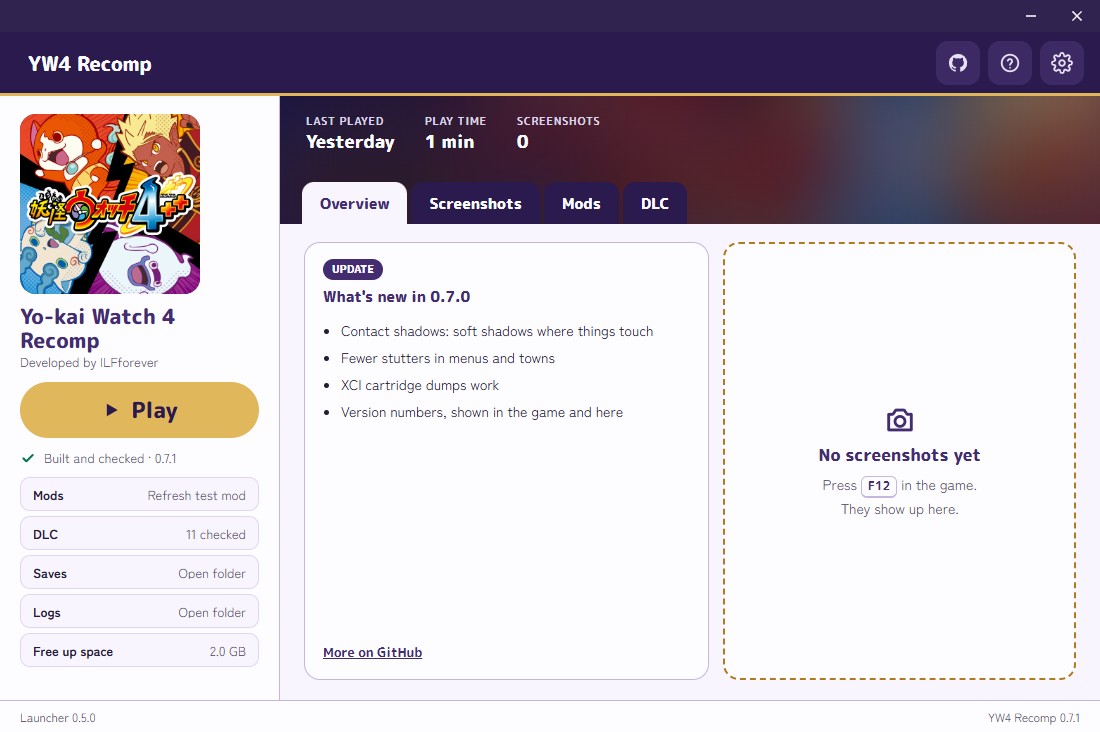
Once the game is built, the launcher opens on Play. With options:

  • Overview: what's new in this version, and your latest screenshots (F12 in the game).
  • Screenshots, Mods (the English patch and other Switch mods) and DLC tabs.
  • Last played, play time, and shortcuts to the saves and the logs.
  • Free up space: you can remove the build files the game doesn't need to run.
Mods
Switch layout, laid over your files at start
Screenshots
F12 in the game
Shortcut
Desktop and Start menu
The Play screen: the game's icon and Play on the left with mods, DLC, saves, logs and free up space; what's new and screenshots on the right
Play, with what's new in 0.7.0
!

Settings

Every day
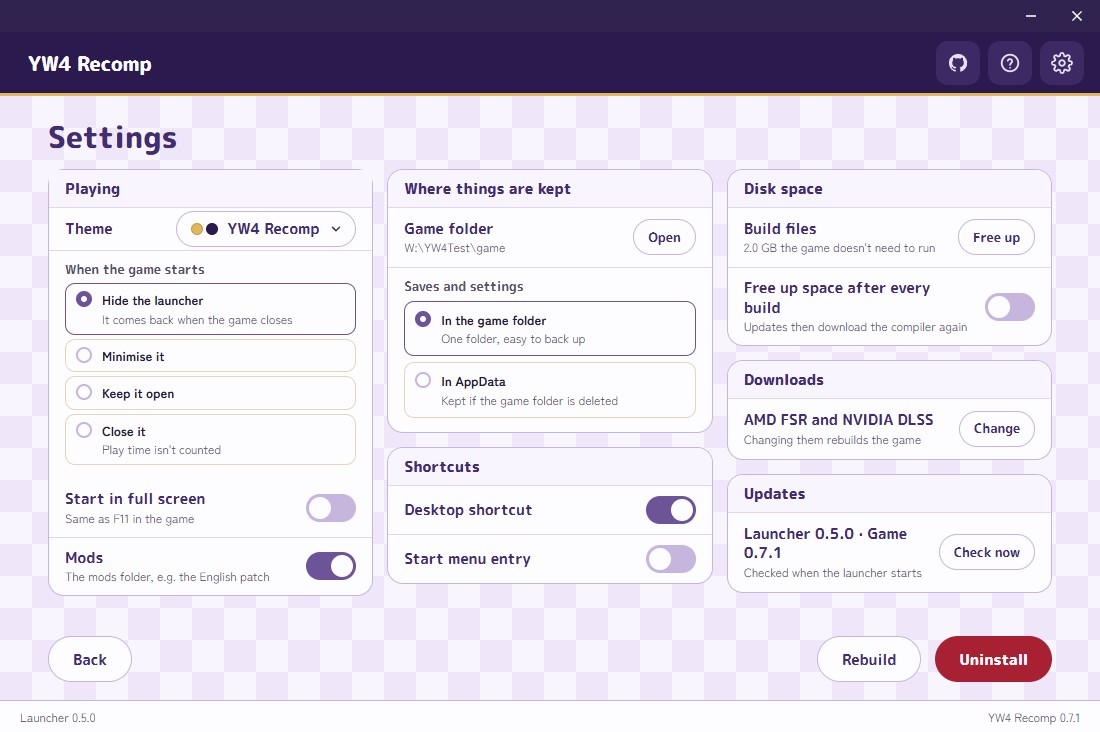
  • Playing: the theme; what the launcher does when the game starts (hide and come back when it closes, minimise, stay open, or close); start in full screen; mods on or off.
  • Where things are kept: the game folder, and the saves and settings in it or in AppData.
  • Shortcuts: desktop and Start menu.
  • Disk space, downloads (changing them rebuilds the game) and updates.
  • Rebuild and Uninstall (it shows what is kept and how big it is).
On Play
Hiding while running behaves like Ubisoft Connect
Saves
choose Game folder or AppData
Uninstall
with detailed selection
The launcher's settings: playing, where things are kept, shortcuts, disk space, downloads, updates, Rebuild and Uninstall
Settings
!

Themes

Look

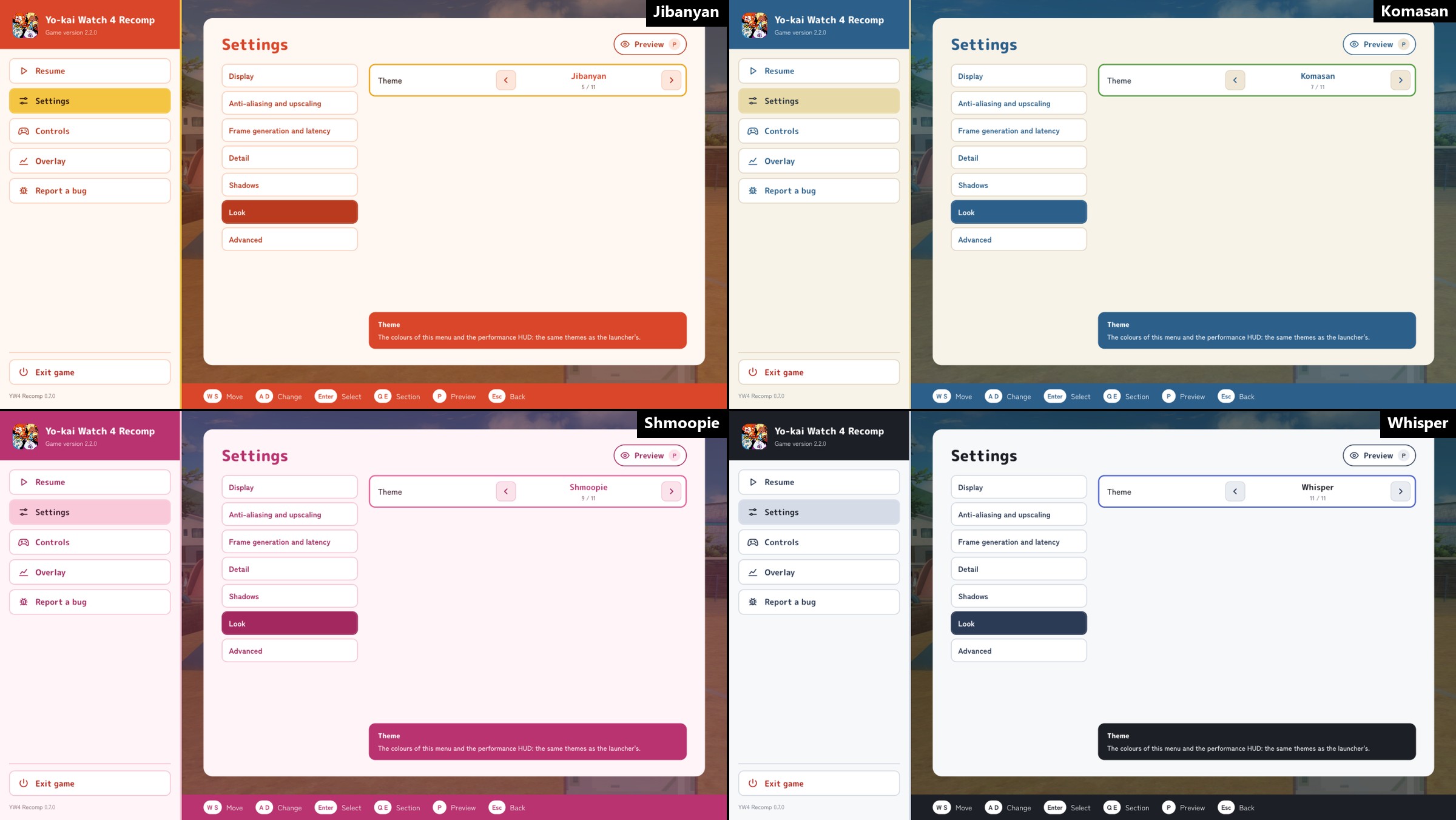
Ten Yo-kai themes besides the built-in look: Damona, Happierre, Hidabat, Jibanyan, Komajiro, Komasan, Manjimutt, Shmoopie, Usapyon and Whisper.

Synced with the game. The game's in-game overlay and performance HUD use the same themes: the game opens in the launcher's theme, and a theme picked in the game (Settings › Look › Theme) is the launcher's too once the game closes.

A theme is a small CSS file of colours in the launcher's themes folder, so a new one can be added without a rebuild; it shows up in both.

Themes
11, with the built-in one
Where
Settings › Playing › Theme
In the game
Settings › Look › Theme
Record
decision 0055
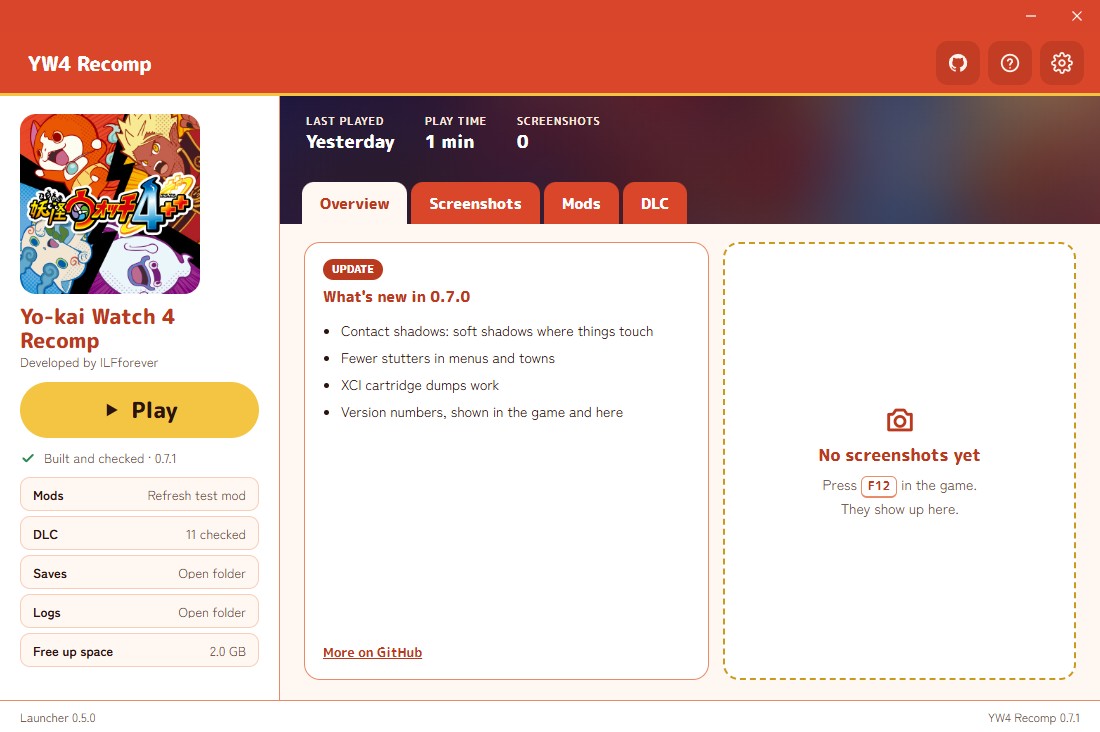
The launcher's Play screen in the Jibanyan theme: red bars, yellow Play
Jibanyan
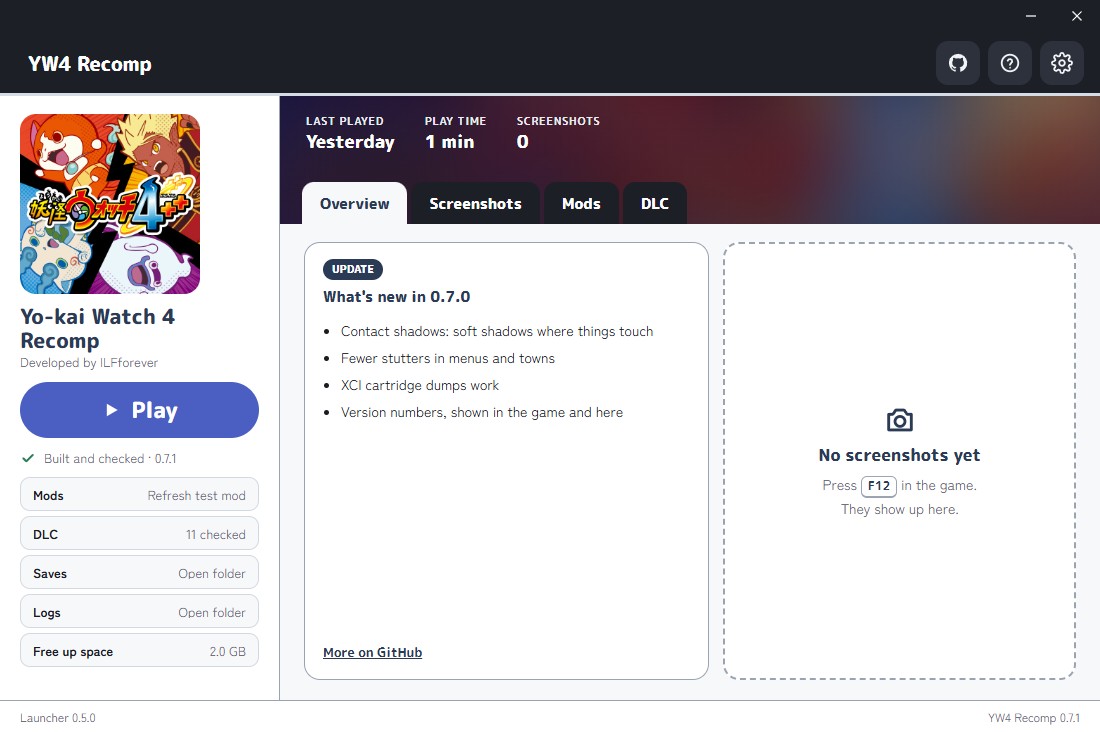
The launcher's Play screen in the Whisper theme: dark blue-grey bars, a blue Play
Whisper
The in-game overlay in four themes: Jibanyan, Komasan, Shmoopie and Whisper
The same themes in the game's overlay
!

Updates

Upkeep

The launcher and the game have their own version numbers and are updated on their own. The launcher checks when it starts; a new version of the game is built again from your files, and the old one stays until the new one works.

Checked
When the launcher starts, or Check now
Game update
Built again; the old one kept until it works
Record
decision 0054